

It is the most confusing feeling in online shopping: You place an order on Amazon, get an email saying “Payment Declined” or “Revision Needed,” you check your bank account, and the money is right there.
You have funds. The card is active. So why is Amazon refusing to take your money?
The reality is that Amazon declines cards for security reasons just as often as for financial reasons. Their AI fraud detection system is incredibly sensitive. If anything looks slightly “off” about your order, even just a typo in your Zip Code, the system blocks the charge before it even reaches your bank.
If you are staring at a full bank account but a declined order, here are the 7 most common reasons why this happens and how to fix it.
1. The “AVS Mismatch” (The #1 Culprit)
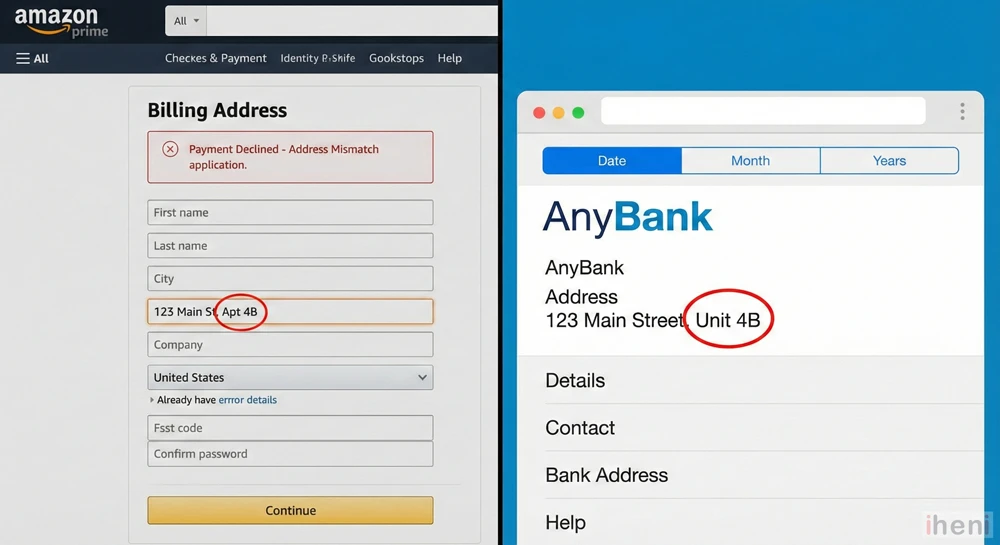
What is it? The Address Verification System (AVS). The Problem: Amazon checks the billing address you typed against the exact address your bank has on file.
- Did you type “Apt 4B” but your bank has “Unit 4B”?
- Did you enter an old Zip Code because you recently moved?
Even a single character difference can cause an AVS Mismatch. The bank sees the funds are there, but Amazon rejects the “Handshake” because the addresses don’t match 100%.
The Fix: Open your mobile banking app, find your monthly statement, and copy the address exactly as it appears there into your Amazon Payment settings.
2. The “Unusual Activity” Trigger
Amazon’s fraud bots look for patterns. If you break your usual pattern, they panic. Common Triggers:
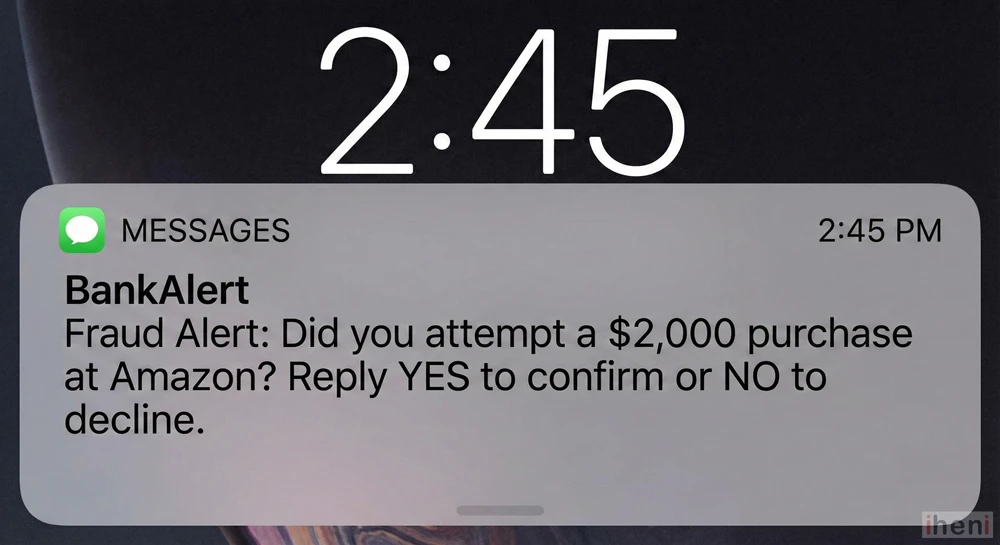
- Big Ticket Items: You usually buy books, but suddenly you order a $2,000 gaming laptop.
- Gift Cards: You are buying a high value of digital gift cards (a common sign of a hacked account).
- New Location: You are ordering from a hotel Wi-Fi or a new IP address while traveling.
The Fix: Check your text messages or email. Your bank likely sent a “Fraud Alert” asking, “Did you attempt this charge?” Reply YES, wait 5 minutes, and then go back to Amazon and click “Retry Payment.”
3. The “Ghost” Authorization Hold
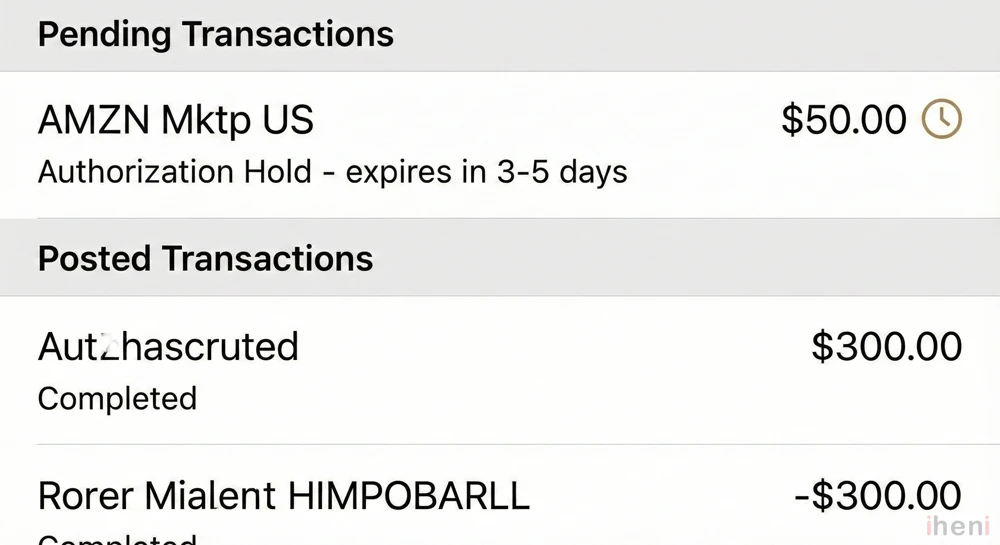
The Confusion: You look at your bank app and see a “Pending” charge from Amazon. You think, “They took the money! Why is the order cancelled?”
The Reality: Amazon has not taken the money. That is a temporary “Hold.” When you click buy, Amazon asks your bank, “Does this person have $50?” The bank freezes $50 to say “Yes.” But if Amazon’s security system (AVS) rejects the order, the charge fails, but the freeze remains.
The Fix: Do not panic. The “Pending” charge will disappear and drop back into your available balance within 3 to 5 business days.
4. Daily Spending Limits (Debit Cards)
This is common with student accounts or standard debit cards. You might have $10,000 in the bank, but your bank has a $1,000 daily online spending limit.
If you bought groceries, gas, and paid a bill earlier today, a large Amazon purchase might push you over that daily cap.
The Fix: Call your bank and ask to temporarily raise your “Daily Point-of-Sale Limit.”
5. International Restrictions
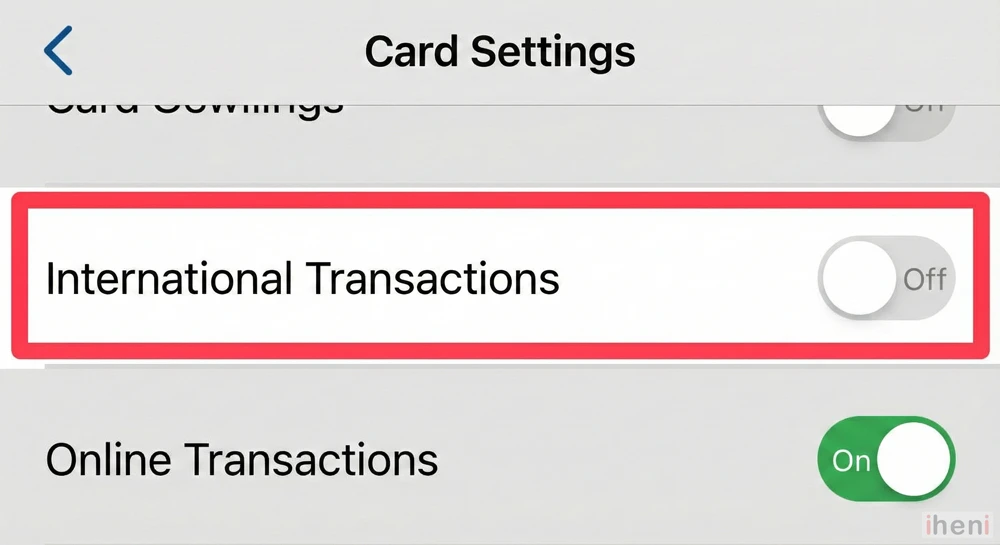
Are you shopping on Amazon.com (USA) while using a card issued in India, Europe, or the UK?
Many banks block “International E-Commerce” transactions by default to prevent fraud. Even if your card has a Visa/Mastercard logo, the bank might auto-decline a US-based charge.
The Fix: Log into your banking app and look for “Card Controls” or “International Usage.” Toggle it ON.
6. The “Invisible” Subscriptions
Did you know Amazon authorizes your card before you ship? If you have Prime Membership, Audible, or Subscribe & Save orders hitting your account on the same day, they might be “eating” your available balance before your new order can go through.
7. Is it a Technical Glitch? (The “Loop”)
If you have checked all 6 reasons above, you verified your address, called your bank, and confirmed you have money, but Amazon still gives you an error every time you click “Retry”…
You are likely the victim of a technical cache error known as the Payment Revision Loop.
This happens when the Amazon app gets “stuck” remembering an old error, even after you fixed the problem.
Note: Use the method in this guide to force the app to refresh its connection to your bank.
How to “Test” Your Card
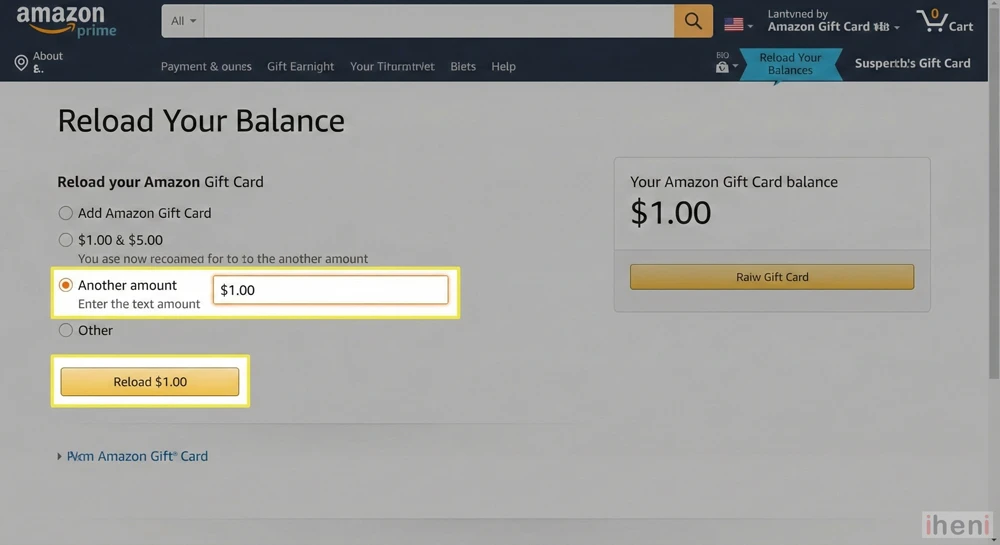
If you are unsure if the problem is your Card or your Amazon Account, try this simple test:
- Go to the Amazon search bar and type “Amazon Reload” (Digital Gift Card balance).
- Try to buy a $1.00 (or £1.00) reload using the same card.
- If the $1 works: Your card is fine. The problem is likely the size of your other order or a specific security flag on that item.
- If the $1 fails: The problem is your bank/card. Call the number on the back of your card immediately.
If you have verified with your bank that the funds are available but Amazon keeps blocking the order, the issue is likely a security flag on your account. You will need to speak to a real person to unlock it.
Use our step-by-step guide on How to Contact Amazon Customer Service (And Bypass the Bot) to get a human agent on the phone in under 2 minutes.

