


It’s the Amazon “Doom Loop”: You get an email saying “Payment Revision Needed.” You click the link, update your card, and hit Retry. It loads for a second, and then… the exact same error pops up again.
You know you have funds. You know the card works. But Amazon won’t let the order go through.

Do not cancel your order yet.
This is usually a technical glitch, not a bank problem. The Amazon app often “caches” (remembers) the old error, or a hidden “Backup Payment” setting is blocking the new card.
Before attempting any technical fixes, it is worth checking Amazon’s payment help page to see if your bank reported a specific error code.
However, you must be careful not to click ‘Retry’ too many times in a row. Doing so can trigger a security flag that locks your account entirely. If you have already received an ‘Account on Hold’ message, you should stop here and read our guide on How to Fix Amazon Account Locked for Unusual Activity first.
## Scam Alert: Is This Email Real?
Scammers often send fake “Payment Revision” emails to steal your password. Before you click anything, check the sender’s email address.
- Real Amazon Email: It will always end in
@amazon.comor@payments.amazon.com. - Fake Scam Email: It might look like
@amz-support.com,@gmail.com, or@amazon-help-desk.net.
The Golden Rule: Never click the link in the email if you aren’t sure. Instead, open your browser, type amazon.com, and check your My Orders page directly.
Here is exactly how to break the Payment Revision loop in 5 steps.
Quick Check: Is it actually a Bank Decline?
Before we fix the glitch, let’s rule out the obvious. If your bank is actually declining the charge, no amount of technical tricks will fix it.
Check your banking app: Do you see a “Pending” charge from Amazon that immediately reversed? If yes, your bank is blocking it. Call them.
Check International usage: If you are buying from a different country’s Amazon (e.g., Amazon.com while in the UK), your card might have “International Transactions” turned off.
Check Daily Limits: Did you make a large purchase earlier? You might have hit your daily spending cap.
If your bank says they never saw the attempt, proceed to Step 1. You are facing the “Ghost Decline” glitch.
If you are confused why your bank is declining the charge even though you have funds, Read our guide on Why Amazon Declines Payments (7 Reasons).
Method 1: Force a Refresh (The “Desktop” Trick)
Success Rate: 80% Why it works: The Amazon mobile app is aggressive about saving data to be fast. Sometimes, it saves the “Error” status and refuses to check with the bank again.
Close the Amazon App completely on your phone.
Open a web browser (Chrome, Safari, or Edge) on a Desktop or Laptop computer.
Note: If you only have a phone, open your mobile browser and select “Request Desktop Site” in the
Go to Your Orders.
Find the stuck order. You should see a yellow or red button that says “Revise Payment Method”.
Select your card and click Retry Payment.
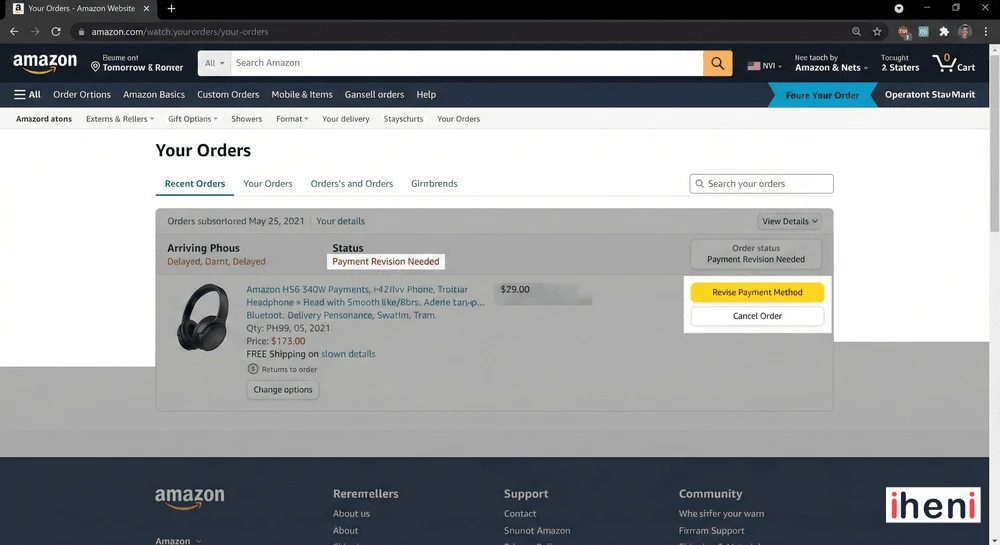
Because the desktop site forces a fresh connection to Amazon’s servers, this often pushes the charge through when the app cannot.
Method 2: The “Backup Payment” Culprit (Hidden Setting)
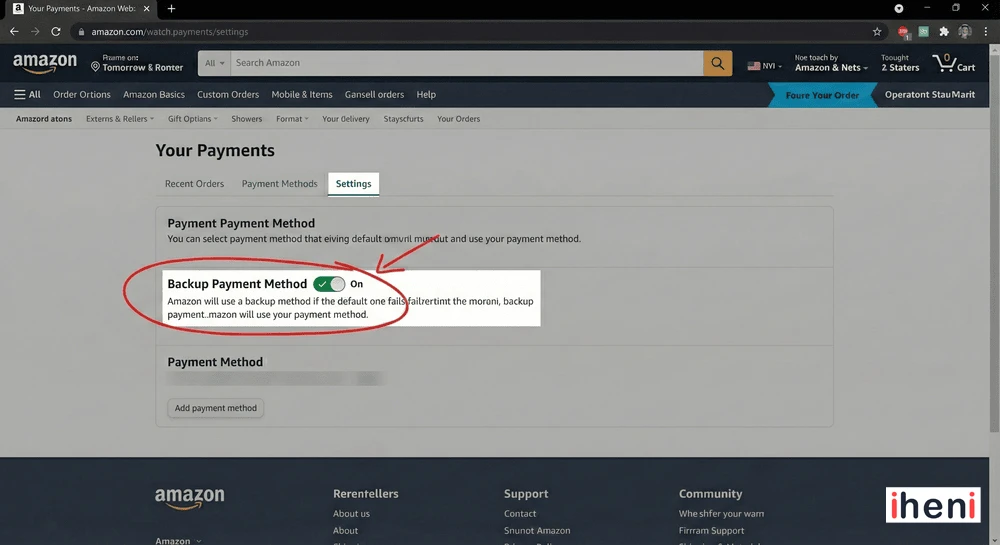
Success Rate: 90% (Most common cause for “Loops”) Why it works: Amazon has a setting that says, “If your main card fails, try this other card.” If your backup card is expired or empty, Amazon tries the backup, fails, and throws the error again—even if you just updated your main card!
You need to disable this to stop the confusion.
Go to Your Account > Your Payments.
Click on the Settings tab (or “Preferences” depending on your region).
Look for “Backup Payment Method”.
Turn this OFF or explicitly Remove the old cards listed there.
Go back to your stuck order and hit “Retry.”
Method 3: The “Delete and Re-Add” Strategy
Success Rate: 60% Why it works: Simply “Updating” an expiration date often doesn’t reset the “Authorization Token” between Amazon and your bank. You need to force a brand new handshake.
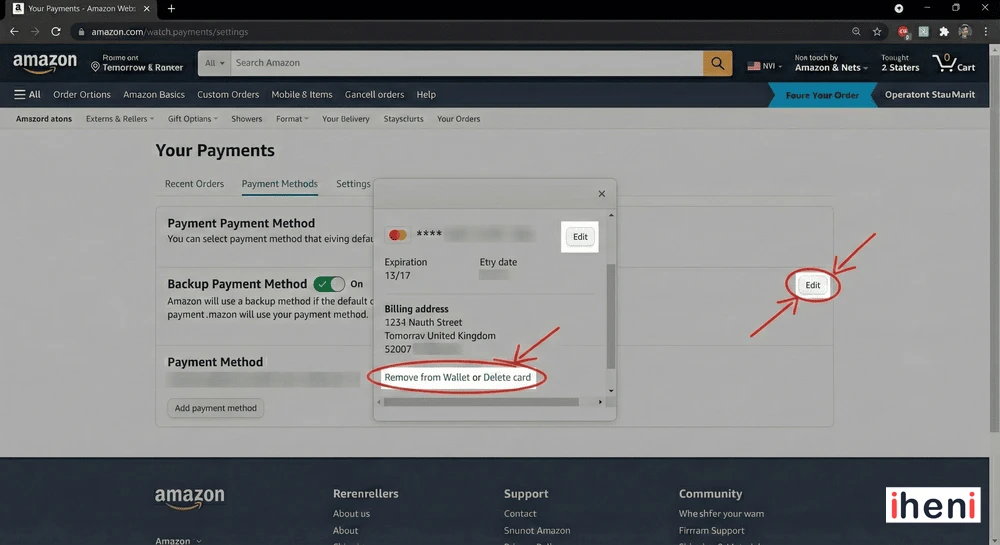
Go to Your Payments (Wallet).
Find the card you are trying to use.
Click Edit.
In the pop-up menu, click Remove from Wallet.
Wait 2 minutes. (Serious step—let the system clear).
Click Add a Payment Method and re-enter the card details as if it’s a brand new card.
Go to the stuck order and select this “New” card.
Method 4: The “Gift Card” Bypass
Success Rate: 100% (The Nuclear Option) Why it works: If your card is glitching on a specific order, you can bypass the credit card processor entirely by paying with Amazon Balance.
The Trick:
Use a different retailer (like a grocery store, 7-Eleven, or a digital wallet like PayPal/CashApp) to buy a digital Amazon Gift Card for the exact amount of your order.
Load that Gift Card into your Amazon account.
Go to the stuck order and click “Revise Payment.”
You should see an option to “Use Amazon Gift Card Balance” or apply your available balance.
Select that. The charge is instant, bypassing the bank glitch.

## I am a Seller: Why is My Amazon Disbursement on Hold?
If you are an Amazon Seller seeing this error, it means Amazon cannot send your payout to your bank account.
This usually happens for one of two reasons:
- Card Expired: The credit card you have on file for “Charge Methods” has expired.
- Prepaid Card: You are trying to use a prepaid debit card. Amazon requires a real credit card.
The Fix: Go to Settings > Account Info > Charge Methods in Seller Central and update your card immediately. Your money will usually be released in the next payment cycle (14 days).
When Should You Cancel and Re-Order?
Sometimes, an order is just “cursed.” If you have tried the steps above and the error persists for 24 hours, the order is likely stuck in a “fraud check” limbo or a database error.
Cancel the order if:
- The item is still in stock.
- The price hasn’t increased since you bought it.
- It is not a limited-time “Lightning Deal.”
Once you cancel, wait 30 minutes, and place a fresh order. Fresh orders go through a different authorization path than “Revised” orders and usually clear instantly.
If none of these steps worked, you need to speak to a human agent. Here is our guide on How to bypass the Amazon Chatbot for payment issues.
Frequently Asked Questions (FAQ)
Q: Why does Amazon keep saying payment revision needed when I have money?
A: This is often a security flag. If your billing address doesn’t match exactly what the bank has (even a wrong Zip Code), or if you are ordering from a new device, Amazon pauses the charge to protect you.
Q: Will Amazon cancel my order if I don’t fix it?
A: Yes. usually, you have 3 to 5 days to fix a payment revision error. After that, Amazon automatically cancels the order to free up inventory.
Q: Can I change the payment method to a different card?
A: Yes. In fact, switching to a completely different credit card is the fastest way to fix the loop.
Did this guide stop the loop? If Step 2 (The Backup Payment Fix) worked for you, let us know in the comments below. It’s the one solution most people miss!

