

Most people meet Google Sheets on a phone, tapping through a budget or a shared shift schedule during a commute. The Android app, published under the name Google LLC, does a lot in a small space: create and edit spreadsheets, share them, comment, sort data, insert formulas, view charts, and open or save Excel files. It also keeps working offline, saving as you type once you reconnect.
The problem is that spreadsheets grow. A three-column expense tracker becomes a fourteen-column monster with a pivot summary and three conditional formatting rules, and suddenly a 6-inch screen feels like reading a map through a keyhole. That is the moment the desktop becomes interesting.
How the Sheets Grid Behaves on a Big Screen
On a larger display, the first thing you notice is that the formula bar and the grid stop fighting each other. On mobile, tapping a cell pops a keyboard that eats half the view; on desktop you see the cell, its formula, and the surrounding rows at once, which matters enormously when you are tracing a broken reference.
Column resizing is the other quiet upgrade. Dragging a column border with a mouse is precise in a way that pinch-and-drag never is, and frozen header rows finally do what they are supposed to do, because you can see enough rows for freezing to make sense.
Toolbar behavior differs too. The Android app hides most formatting behind a small “A” icon and a bottom sheet. With a keyboard attached, you get real shortcuts: Ctrl+B, Ctrl+Shift+V for paste-values-only, and arrow-key navigation that lets you fly across a data set without lifting your hands.
Building a Reusable Tracker Step by Step
Here is a workflow that holds up no matter where you start, phone or desktop. Say you are tracking recurring bills.
- Put your headers in row 1 (Date, Category, Description, Amount) and freeze that row so it stays visible while you scroll.
- Select the Amount column and set it to a currency format once, so every future entry inherits it instead of being fixed one cell at a time.
- Add a summary block off to the side using SUMIF, pulling totals per category from the Category column.
- Turn on conditional formatting to flag anything over your threshold in a single fill color, which is far easier to read on mobile later than a wall of numbers.
- Use Data, then Create a filter, so you can narrow by month without touching the underlying rows.
Build that structure on a desktop and the Android app becomes a comfortable data-entry front end. You are no longer designing on the phone, just adding rows to a sheet that already knows what to do with them.
The Explore feature deserves a mention here. Tapping it surfaces instant charts and suggested formatting based on what is in your range. It is useful as a starting point for a chart you then refine manually, though it tends to guess conservatively with messy data.
Running Google Sheets on Windows Without a Browser Tab
The straightforward route on a PC is the web version, and for most people that is the end of the story. But there are reasons to run the Android build instead: you might be testing how a shared sheet looks to mobile collaborators, or you might want the app’s offline mode behaving the way it does on a device rather than relying on browser storage.
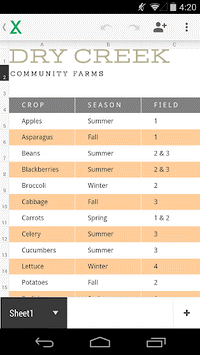
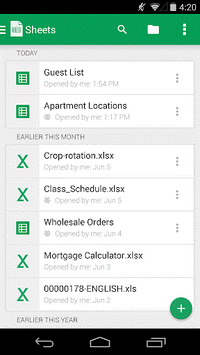
For that, an Android emulator such as BlueStacks will run the Sheets app on Windows. Two setup details matter specifically for this app, and they are worth getting right before you start typing.
Offline Files and Storage Access
Sheets marks individual files for offline availability. Inside an emulator, that cached copy lives in the emulator’s virtual storage, not on your Windows drive. If you plan to move Excel files in and out (Sheets opens, edits, and saves .xlsx), set up the emulator’s shared folder first and note its Windows path, otherwise you will be hunting for an exported file that technically exists but nowhere you can reach.
Keyboard Mapping for the Formula Bar
The second detail is keyboard input. Emulators route a physical keyboard to the Android text field, and the Sheets mobile editor handles Enter and Tab differently from the web version. Test a few cells before committing to a long data-entry session: if Enter is committing the cell instead of adding a line break, that is expected behavior, not a bug.
That’s exactly the scenario the tracker above is built for: someone drops twenty new rows into your phone budget, and now the SUMIF summary needs a pivot table stacked on top of it. Building that pivot table with a mouse, after a Google Sheets download for PC, beats trying to do it with your thumbs.
Where the Mobile App Still Falls Short
Collaboration is where Sheets earns its keep. Multiple people in the same file, live cursors, comments you can reply to from any device. On a desktop-sized screen, comment threads sit alongside the data instead of covering it, which changes how usable the review process is on a busy sheet.
Automation, though, has a ceiling. Apps Script, add-ons, and macro recording are not part of the Android app. If your workflow depends on a script that emails a weekly summary, you will be doing that setup from a browser, then letting the mobile app consume the results.
One caveat worth carrying with you: very large sheets with heavy formula chains recalculate slowly in the mobile app, and slower still inside an emulator. Keep archive data in a separate file and reference it rather than dragging half a million cells around. Your battery, and your patience, will last longer.

