

Blooket has transformed classroom reviews into highly engaging, game-based learning experiences. By combining traditional quiz mechanics with action-packed modes, it keeps students actively participating rather than just staring at flashcards. Whether you are a teacher setting up a session or a student jumping in to play, understanding the platform’s core mechanics is essential.
Here is exactly how to navigate Blooket’s ecosystem-from the initial login to the reality of game hacks.
Blooket Login: Accessing Your Account
To create games, track student progress, or save your in-game loot (Blooks), you need an account. The Blooket login process is straightforward but differs slightly based on your role.
- For Teachers/Hosts: Go to
[id.blooket.com/login]. You can log in using a Google account or an email/password combination. This grants full access to game creation and analytics. - For Students/Players: A login isn’t strictly required to play a game if the host provides a game code. However, creating a student account allows players to track their stats, earn daily tokens, and unlock new Blooks (the square animal avatars) to use in future games.
Blooket Dashboard: Your Command Center
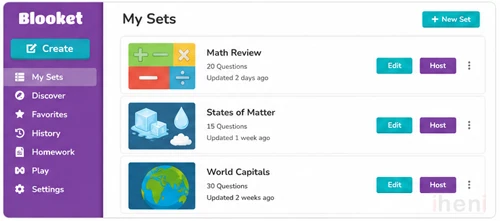
Once you complete the Blooket login, you land on the Blooket dashboard. This is the control room for educators. From here, you can manage every aspect of your teaching toolkit:
- My Sets: View, edit, or organize the quiz sets you have created or duplicated from others.
- Discover: Search Blooket’s massive public library of pre-made question sets created by other educators.
- Homework: Assign asynchronous games where students complete quizzes at their own pace before a deadline.
- History/Reports: Review detailed analytics from past games to identify knowledge gaps, see which questions tripped up the most students, and track overall class performance.
| Capability | Host (Teacher) | Player (Student) |
|---|---|---|
| Account Required? | Yes | Optional (but recommended) |
| Start a Live Game? | Yes | No |
| Access Analytics? | Yes | No |
| Unlock Blooks? | Yes | Yes |
Blooket Host: Running the Game
Hosting is what brings the platform to life. The Blooket host (usually the teacher) dictates the game mode, the time limit, and the quiz content.
To get a game up and running in front of your classroom, follow these steps:
- Navigate to your dashboard and choose a set from “My Sets” or find one via the “Discover” tab.

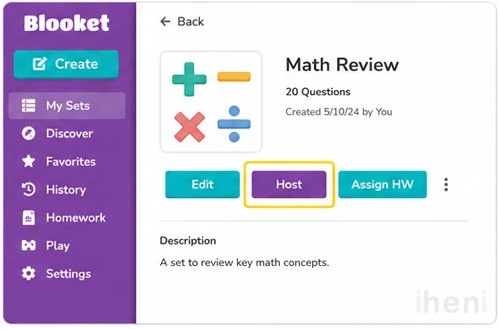
- Click ‘Host’: Select the “Host” button to open the game mode menu.

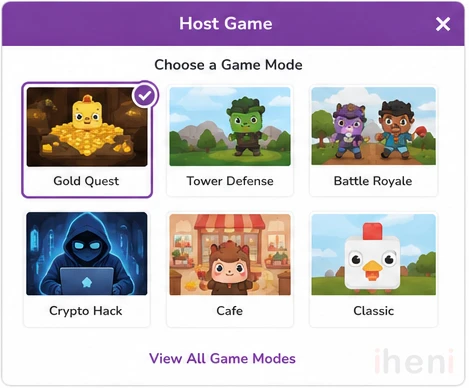
- Choose a Game Mode: Gold Quest, Crypto Hack, Tower Defense. Select the format that best fits your class size and time constraints.

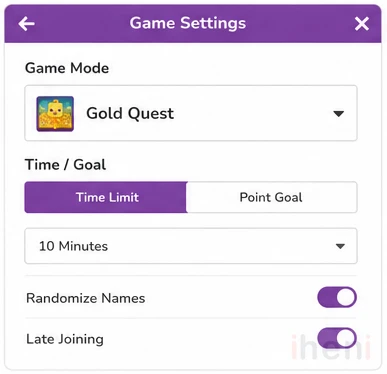
- Configure Settings: Set the duration (a strict time limit or a specific point threshold) and decide if you want randomized names or late joining enabled.

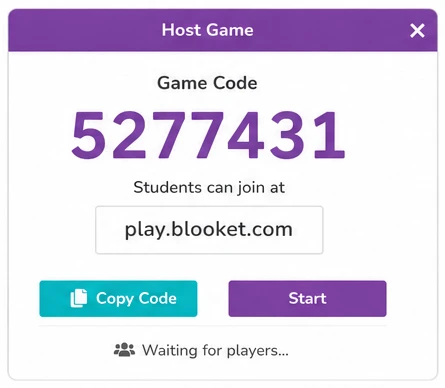
- Launch and Share: Click “Host Now” to generate the unique 7-digit Game code. Display this code on your screen for students to see.

Blooket Join & Blooket Play: The Student Experience
For students, getting into the action requires two distinct steps: joining the lobby and playing the game.
Blooket Join
When a teacher launches a game, players must connect their devices to that specific session. If a student tries to enter the wrong portal, they will get stuck.
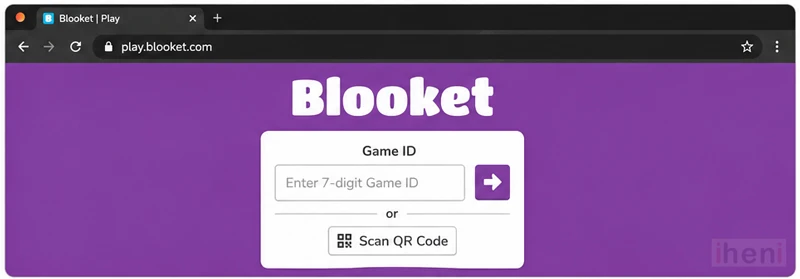
- Go to
play.blooket.comon any web browser (do not go to the main Blooket homepage).

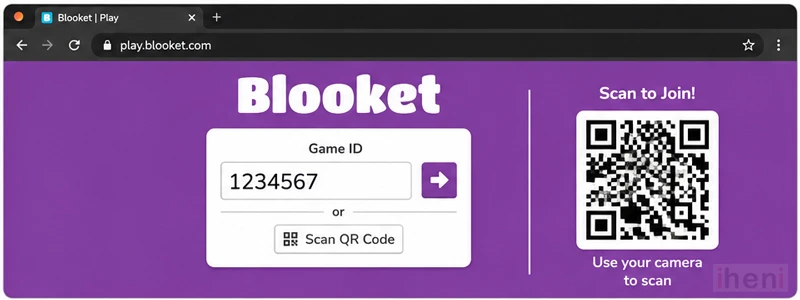
- Enter the Game ID or Scan the QR Code: Type in the 7-digit code provided by the host at
play.blooket.com. Alternatively, if the host is displaying their screen, you can use your device’s camera to scan the QR code to bypass typing the code entirely.

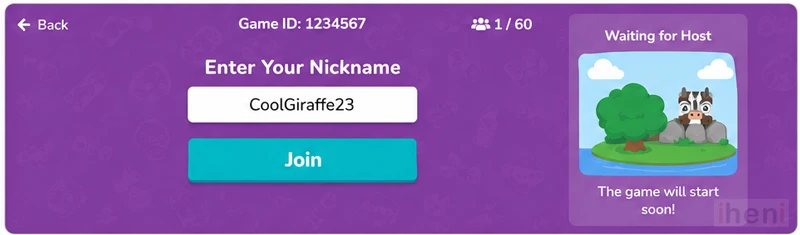
- Add a Nickname: Enter a recognizable name (or use the randomly generated one if the host forced that setting) and wait in the lobby for the game to start.

Blooket Play
Once the host starts the session, Blooket play begins. The mechanics differ vastly depending on the game mode, but the core loop remains the same:
- Answer Questions: Students read the prompt on their screen and select the correct multiple-choice answer.
- Earn Rewards: Correct answers yield tokens, gold, or actions (like stealing from another player or hacking their crypto).
- Strategize: The game isn’t just about speed. Modes like Crypto Hack or Fishing Frenzy require players to make tactical choices with their earned rewards, meaning the fastest test-taker isn’t always the guaranteed winner.
Blooket Free vs. Blooket Plus: Do You Need to Upgrade?
The standard Blooket account is completely free and allows teachers to host live games for up to 60 players per session. For most standard classrooms, this is more than enough.
However, Blooket offers premium tiers Blooket Plus and Blooket Plus Flex. Upgrading unlocks distinct advantages:
- Increased Player Limits: Host up to 300 students in a single game (perfect for massive lectures or school-wide events).
- Exclusive Game Modes: Access to premium-only game modes and early access to new releases.
- Advanced Analytics: Deeper, more comprehensive reports on student performance to better track educational growth.
- Folder Organization: Better dashboard tools to organize massive libraries of question sets.
Blooket Pros & Cons: Is it Worth It?
Pros:
- High Engagement: The unique game modes (like Tower Defense and Gold Quest) keep students far more engaged than traditional quizzes.
- Pacing Flexibility: Students can answer questions at their own speed rather than waiting for the whole class.
- Free to Use: The core features and up to 60 players per game are completely free.
- Massive Library: Teachers can access thousands of pre-made question sets created by other educators.
Cons:
- Internet Reliant: A weak classroom internet connection will cause games to lag or disconnect players.
- Can Be Distracting: The competitive nature of the game mechanics can sometimes overshadow the actual educational content if not managed well by the host.
Blooket Hacks: The Reality and Risks
Because Blooket relies heavily on competitive leaderboards and in-game currency, Blooket hacks (often hosted on GitHub as browser extensions or JavaScript tools) are highly sought after by players looking to gain an unfair advantage. Common hacks claim to auto-answer questions, flood games with bot accounts, or instantly unlock all rare Blooks.
Here is the reality of using these exploits in 2026:
Permanent Account Bans: Using scripts or automated bots directly violates Blooket’s Terms of Service. Blooket actively patches these exploits and regularly bans accounts caught using them.
Security Vulnerabilities: Downloading unverified scripts or extensions from third-party sites can easily expose your device to malware or compromise your personal data.
Ruined Analytics: For teachers, hacks destroy the educational value of the platform. If a bot is auto-answering, the teacher’s post-game reports are skewed, making it impossible to see where students actually need help.
Instead of risking an account ban or a malware infection, the most effective way to accumulate tokens and rare Blooks is through legitimate play-participating in daily games, optimizing strategies for high-yield modes, and consistently hitting the daily token cap.
Frequently Asked Questions (FAQs)
1. Do students need an account to join a Blooket game?
No. Students can easily play a live game without creating an account. They simply go to play.blooket.com, enter the 7-digit Game code provided by their teacher, and choose a nickname. However, creating a free student account allows them to earn tokens, unlock rare Blooks, and track their stats across different sessions.
2. How do I get a Blooket join code?
A Blooket join code (Game ID) is uniquely generated whenever a host (usually a teacher) starts a live game session from their dashboard. If you are a student, you cannot generate this code yourself; you must ask your teacher or the person hosting the game for the active 7-digit PIN.
3. Why is my Blooket Game ID not working?
If you are receiving an error when entering a code at the play portal, it is usually due to one of three reasons:
- The code is incorrect: Double-check the 7 digits on the host’s screen.
- The session has ended: Blooket codes have a limited lifespan. If the teacher closes the game window or ends the session, the code instantly expires.
- Late joining is disabled: The host has the option to lock the game once it begins, preventing new players from joining late.
4. Can I play Blooket by myself?
Yes. While Blooket is famous for its live, multiplayer classroom games, students and teachers can play solo. If you have an account, you can go to the “Discover” tab, find any question set, and click Solo to play specific game modes (like Tower Defense or Cafe) on your own. This is a great way to study independently or grind for daily tokens.
5. What is the daily token limit on Blooket?
To prevent botting, Blooket enforces a strict earning cap of 500 tokens per day through normal gameplay. However, players can spin the Daily Wheel once every 24 hours to win up to 1,000 bonus tokens. Combined with Blooket Plus bonuses, a player can technically earn a maximum of around 1,510 tokens in a single day.
6. Blooket Join is stuck loading. How do I fix it?
Blooket is entirely web-based and requires a stable internet connection. If the screen is stuck loading after you enter your nickname, it is almost always a network issue. Disconnect from your current Wi-Fi, reconnect, or clear your browser’s cache and try joining the game again.
7. What is the difference between Blooket and Kahoot?
While both are gamified learning platforms, their pacing is entirely different. In Kahoot, the whole class answers the same question at the exact same time, and speed is the primary metric. In Blooket, students answer questions independently at their own pace on their own screens, earning rewards that they then use to play a secondary video game (like building a café or hacking crypto) against their classmates.

